Reactor Motor Tutorial By Aziz Khan
Hello and welcome every buddy to my (Reactor Motor) tutorial.
Many of the people who asked me about reactor function in 3ds max and they asked me different kind of question about reactor in 3ds max and I tried to answer them, I realize that I should write some reactor tutorials for those who need these kind of tutorials and to help them, I will be happy to share my knowledge, some one said (Share your knowledge that God Will Increase in your knowledge).
Ok lets come to the main point, we will learn (Reactor Motor) in this tutorial, how you can simulate a fan to react as fan in scene it will possible with help of (Reactor Motor), (Point Constraint), (CSsolver), and the (Rigid Body Collection) I will show you how to do and use these (Reactors) name mentioned above.
Before going to start this tutorial you should have (Intermediate) understanding of 3ds max, and one thing more I would to say make sure you have a (Fan Model) in the scene if you don’t have and you really anxious to follow along with me you can (Download Starting Scene From ( Here ).
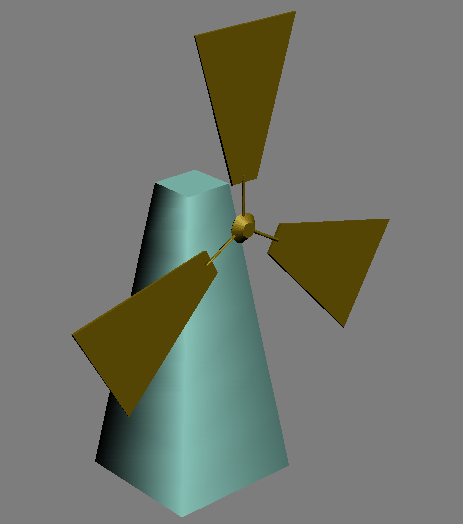
Lets get start make sure you have nice and neat scene as like as me in the starting scene.
1-If you follow along with me your scene should look similar to mine as image below or if you have your own model then I cant say :) just Joking.
2-Now go to reactor panel and chose (Rigid Body Collect) as in the image below.

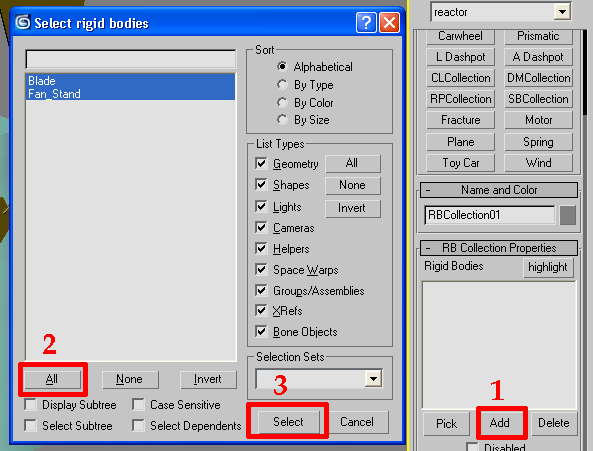
3-Ok Now just click any where in the scene to create (Rigid Body Collection) when you done, you should see the properties for (Rigid Body Collection) and then click on (Add) window will appears select (All) then just hit (Select) button as in the image below.
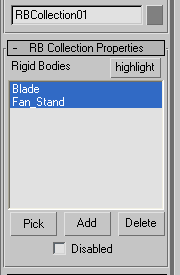
4-And you should see the Blade and the Fan_Stand is the (Rigid Body Collection) as image illustrating below.
5-Its time to create (Point Constraint) to our Fan Blades to do this go to (Reactor) panel and then chose as image indicating down.

6-Create (Point Constraint) any where in your scene it dose not matter where it is it will automatically find the target when we give this little guy the target.
When you done chose button in from of (Child) Called (None) and then click on the fans, now (Point Constraint) has adopt the Fans on it, as in the picture showing below.

7-Once again go to (Reactor) panel and this time chose (Reactor Motor) as in the picture Illustrating below.

8-Create the (Reactor Motor) Any where in your scene, and now in its property chose (Rigid Body) button called (None) and then chose the (Fan Blade) then change the (Ang Speed) to 20 the (Gain) 4 and the (Rotation Axis) here is mine set to ( Z ) check your own what direction you have set just play with X Y Z to adjust your right position and to get desired rotation. as in the image below.

9-Again go to (Reactor) Panel then this time chose (CSsolver) as in the image below.

10-Create this one any where in the scene, and see the properties now click on (RB Collection) button and then chose (Rigid Body Collection) Like the picture indicating down.

11-Ok When you done lets add (Point Constraint) to this (Solver) to do this just hit the button called (Add) then (All) then just hit (Select) button as in the image below.

12-And now you should see that the (Point Constraint) has added into our (Solver) list like the picture illustrating bellow.

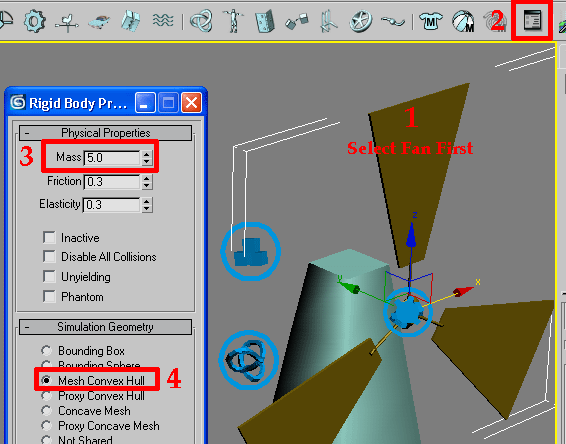
13-Till here we are pretty done and one thing has to do just the mass of Fan Blades, ok to do this make sure fan is selected and then go to (Reactor) Panel and then chose button Called (Open Property Editor) and from property change the mass of Fan to 5 and the change in the (Simulation Geometry) to (Mesh Convex Hull) as in the picture indicating below.
14-We are done now with all the stuffs in the scene, its time to test our animation in the (Reactor) panel chose this button as in the image below, if you followed me correctly you should not have any error, if you face any error recheck your scene what the problem is going on, mine is perfectly working no error no headache just nice and neat.

15-When you happy with your animation and that you want its movie clip, you should create animation for the fan in the scene when you render the whole animation should study through rendering. to create animation go to (Reactor) panel and then chose the button illustrating below, and wait for a while till animation pass through the reactor.

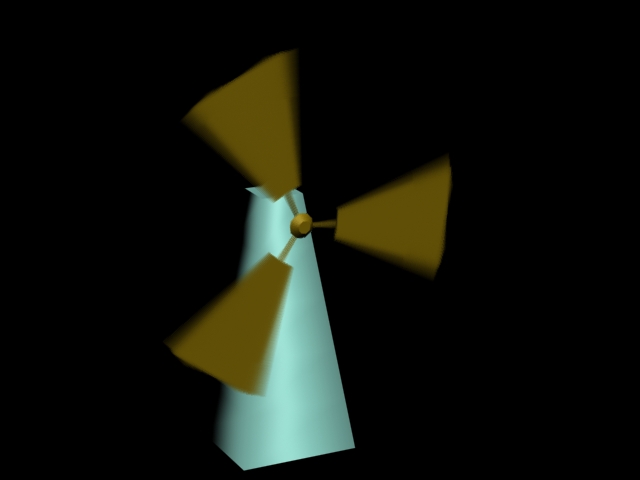
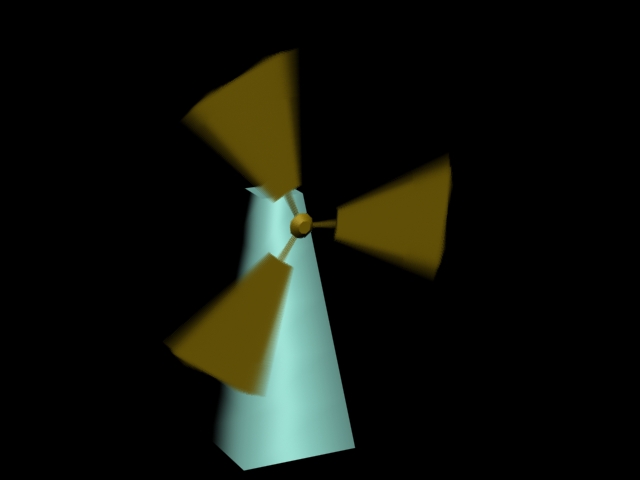
And here is my final image illustrating below.
You can Download the (End_Scene From Here)
Also the Finished Avi is (Here For Download)
I hope you learned something about (Reactor Motor) It was just the introduction the whole reactor is working as like the (Reactor Motor) if use your mind there difficulty you can learn it easily if you try it hard.
If you have any Comments, Suggestion, Question, Feedback, don’t Hesitate to write me at,


About The Author

You might be interested in